
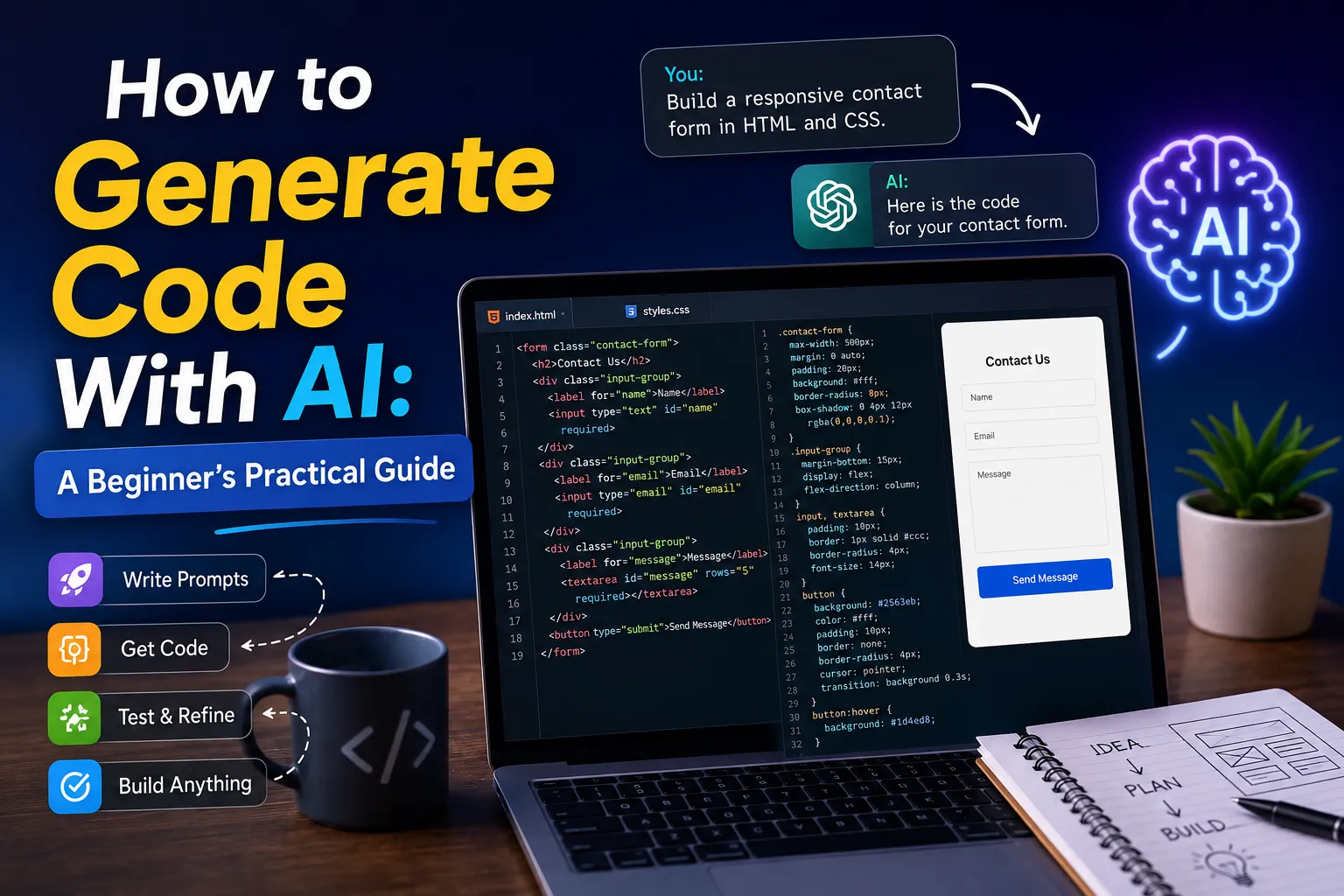
How to Generate Code With AI: A Beginner’s Practical Guide
Not long ago, building a working app without a computer science background felt like climbing a wall with no footholds. I spent weeks just trying to understand basic HTML before I could place a button on a screen. Then I started using AI for coding, and everything shifted.
The first time I asked an AI assistant to build a calculator, I braced for broken snippets and confusion. What came back was clean, functional code with comments walking me through each part. That was the moment I stopped thinking of AI as a glorified search engine.
Whether you want a portfolio site, a browser extension, or a script that kills repetitive tasks, AI gets you moving at a completely different pace.
AI gets you moving at a completely different pace. You can even use it to build websites, as shown in my guide on How to Build a Website with Claude AI for Free.
What AI Code Generation Actually Means
Plain English goes in. Working code comes out.
No memorizing syntax rules. No staring at a blank file, wondering where to start. You describe what you want, the AI puts together a draft, and you test and improve from there.
From my experience, beginners pick things up faster this way than grinding through documentation. Type “build a responsive contact form in HTML and CSS,” and you have a working layout in seconds. Compare that to reading spec sheets for two hours before writing a single tag.
Why This Even Matters If You Are Not a Developer
Old-school programming had a real barrier. You needed to understand data types, language rules, and syntax before you could build anything that actually ran. Miss one semicolon and the whole thing breaks. The error message usually tells you nothing useful.
AI clears most of that out of the way. You focus on what you are trying to build instead of fighting the language itself.
That said, I found early on that knowing a little still pays off. When the generated code acts strangely, having even a basic feel for the language helps you figure out why. It is the difference between staring at the problem and actually solving it.


The Tools Worth Knowing About
After running different combinations across several projects, four tools kept showing up as genuinely useful.
| Tool | Best For | Weakness |
|---|---|---|
| ChatGPT | General coding, scripts, APIs, beginner explanations | Sometimes generates outdated syntax |
| Claude | Large files, bug spotting, and architectural review | Less real-time editor integration |
| GitHub Copilot | In-editor autocomplete, inline suggestions | Needs existing coding knowledge to use well |
| Gemini | Code explanation, JavaScript debugging | Can hallucinate on complex logic |
None of these is perfect. Each one has a specific strength. ChatGPT handles broad requests without much setup. Claude is better when you paste in a long file and want it to find what is broken. Copilot works best when you already know what you are building and want to move faster through the actual typing.
Claude is better when you paste in a long file and want it to find what is broken. If you are comparing AI coding assistants before choosing one, see my detailed comparison of Claude AI vs ChatGPT: Which One Is Better?

How the Process Actually Works
Step 1: Know What You Want Before You Ask
Vague inputs get vague outputs. Spend five minutes writing down exactly what you need before touching the keyboard. Not “a website” but “a single-page portfolio with a header, a three-column project grid, and a contact section using plain HTML and CSS.”
Step 2: Write a Prompt That Works Like a Brief
Think of it as handing instructions to a contractor. The more specific you are, the less guesswork they have to fill in.
A weak prompt: “Make a login page.”
A stronger one: “Build a login form in HTML, CSS, and vanilla JavaScript. Include email and password fields, a toggle to show or hide the password, validation that flags empty fields before submission, and an error message when the format is wrong.”
The second version gives you something you can actually use. The first gives you a starting point you will spend an hour reworking.
Step 3: Read What Comes Back
Never drop AI output directly into a project without reading it first. I learned this the hard way. The code ran, the page loaded fine, but a contact form was submitting to nowhere because the action attribute was a placeholder I had not caught.
Even if you do not follow every line, reading through it catches the obvious stuff.
Step 4: Test Under Real Conditions
Run it. Click every button. Resize the browser window. Submit forms with blank fields and wrong formats. What caught me off guard early was how often something looked perfect on desktop and completely fell apart on a phone. Mobile testing is not optional.
Step 5: Push It Further With Follow-Up Prompts
A working base is just the starting point. Ask the AI to swap the color scheme, add keyboard support, compress the JavaScript, or walk you through any part you did not follow. Each round of feedback tightens the output.
Writing Prompts That Actually Get Results
A few things changed how I approached prompts after enough projects.
One pattern stood out: bullet-point requirements produce better code than paragraph descriptions. When you write a paragraph, the AI interprets it. When you write a numbered list, it follows it. I tested this directly on the same feature request two ways and the difference in output quality was noticeable.
Another thing that helped was building in stages instead of all at once. Ask for the data input layer first. Get that working. Then ask for the display layer. Then the export. Trying to describe a full system in one prompt usually produces something bloated and harder to fix.
Be specific about the tech stack. “Build a login system” leaves the AI guessing. “Build a login system using PHP, MySQL, and prepared statements for all queries” does not.
List features individually. For a task manager: task creation with a title field, a delete button on each task, local storage so tasks survive a page refresh, and a toggle to filter incomplete items. Numbered lists inside prompts produce better-organized output.
Ask for comments. Adding “include inline comments that explain what each section does” turns the output into something you can actually learn from. That is how I figured out how JavaScript event delegation works.
Say what you do not want. “Pure JavaScript only, no frameworks, no jQuery” stops the AI from pulling in libraries you never asked for.
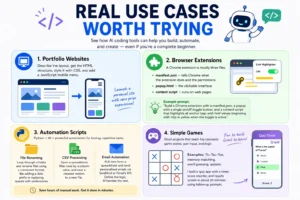
Real Use Cases Worth Trying
Portfolio websites.
Describe the layout, get the HTML structure, style it with CSS, add a JavaScript mobile menu. Plenty of people have launched working personal sites this way with zero prior web experience.
Browser extensions.
Once I understood that a Chrome extension is really just three files, the whole thing became less intimidating. You need a manifest.json that tells Chrome what the extension does and what permissions it needs, a popup.html file for the clickable interface, and a content script that runs on actual web pages.
My prompt for a link-highlighter extension was: “Build a Chrome extension with a manifest.json, a popup with a single on/off toggle button, and a content script that highlights all anchor tags with href values beginning with http in yellow when the toggle is active.” That specificity mattered. Earlier tests with shorter prompts produced incomplete files or left out the content script entirely.
Automation scripts.
Python is where AI coding really earns its keep for repetitive tasks.
File renaming: write a script that loops through a folder and renames files using a consistent format, like adding a date prefix or swapping spaces for underscores. Five minutes to write the prompt. Never do it manually again.
CSV processing: a script that opens a spreadsheet, filters rows by a column value, and saves a cleaned version to a new file. You describe the column names and the filter rule. The AI figures out the pandas syntax.
Email automation: pull data from a spreadsheet and send personalized messages through SendGrid or Gmail’s API. The AI handles the boilerplate plumbing while you define what goes to whom.
Simple games.
Tic-Tac-Toe, memory matching, word guessing. These small projects teach you game states, user input handling, and conditional logic faster than most tutorials. I built a quiz app once and kept feeding it follow-up prompts until it had a countdown timer, a score counter, and a results screen. The base took twenty minutes.
Using AI to Debug Broken Code
Debugging used to mean sifting through forums for an hour hoping someone had the same error. Now the process is: paste the broken function and the error message, ask what is wrong, read the explanation.
“Why is this returning undefined instead of the array?” “This loop never stops. What is causing it?”
The explanation is often worth more than the fix. When you understand what went wrong, you avoid the same mistake in the next project. Reading AI debug responses has taught me more about JavaScript scope than most things I read deliberately.
What Works Well and What Has Limits
Genuinely useful
- Rapid prototyping without needing to know the full library
- Debugging with an explanation, not just a patch
- Code comments that explain logic you can actually read
- Low barrier for non-technical founders and creators
Where it falls short
- Security is never applied automatically; you have to ask for it
- Older training data means deprecated methods sometimes appear
- Long, multi-file projects push past context limits fast
- Architecture decisions, performance tuning, and product thinking stay human
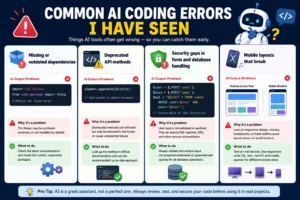
Common AI Coding Errors I Have Seen
After running enough projects to see the same problems repeat, here is what to watch before you assume the output is clean.
Missing or outdated dependencies. The AI references libraries confidently, but sometimes the version it assumes is outdated or the package name has changed. The code looks correct until you run it and get a module not found error. Cross-check library names in the official docs before putting anything into a real environment.
Deprecated API methods. This shows up a lot with JavaScript and Python. The training data includes older examples, so sometimes you get solutions built around methods that still work but are no longer recommended. If something runs but logs warnings, look up the method name to confirm it is still current.
Security gaps in form and database handling. AI almost never sanitizes user input on its own unless you tell it to. I have seen it produce login systems that worked perfectly in testing but were wide open to basic injection. Always specify that you want input validation and parameterized queries, every single time.
Mobile layouts that break. The AI tends to assume a wide desktop viewport. Breakpoints for smaller screens are often missing or set to values that do not hold up on an actual phone. After any UI generation, test on a real device or use the browser’s responsive mode before marking it done.
Mistakes to Avoid
Skipping the review step.
Even code that looks clean can have quiet problems buried inside. The placeholder form action I mentioned earlier looked completely fine on the surface. Read it before you use it.
Using AI as a shortcut instead of a learning tool.
Copying without reading means you will not recognize problems when they show up. The goal is to build faster and still understand what you are building. Both things are possible at the same time.
Ignoring security from the start.
AI does not add secure coding practices unless you ask directly. If the project touches user data, passwords, or payment information, spell out what you need: input sanitization, safe database queries, proper authentication logic.
One-line prompts for complex requests.
Short prompts save thirty seconds on the front end and cost thirty minutes on the back end. Write a real brief.

FAQ
Q1. Do I need coding experience to use AI for development?
No prior experience is required. That said, even picking up basic HTML or Python fundamentals helps you catch problems in the output and understand what needs fixing. You do not need much. Just enough to read what comes back.
Q2. Which AI tool is best for writing code?
Depends on the job. ChatGPT is a solid starting point for general tasks. GitHub Copilot fits developers who already have a setup and want inline suggestions. Claude handles large files and long-context debugging better than most. Run the same request through two and see which output actually matches what you needed.
Q3. Can AI write code that is safe to use in real projects?
It can, but only if you ask for security practices directly and review the output yourself. It does not apply them automatically. Anything handling user data or payments should be treated as a first draft that still needs a real review.
Q4. How do I improve the quality of AI-generated code? Detailed prompts. Name the language, list the features, and state what you do not want. Then ask follow-up questions to refine specific parts. Precision going in directly shapes what comes out.
Q5. Will AI replace software developers?
Not based on anything I have seen. Repetitive tasks and boilerplate drafts, yes. Architectural thinking, performance decisions, security audits, and understanding what a product actually needs to do are still very much a human job. Most developers I know treat it as a productivity tool and nothing more.
Final Thoughts
The gap between having an idea and building something real has genuinely closed in a way that did not exist a few years ago. What once required months of learning to even get started can now begin in an afternoon.
But the bigger shift is not speed. It is who gets to build things now.
People with ideas and no technical background have a real path forward. The tool helps. The judgment, the direction, the decisions about what to build and why, those still belong to you. Get those right and the AI makes everything after them faster.
Learning how to write better prompts is similar to learning SEO: small improvements in inputs often create significantly better results. If you are building websites or content online, check out my Complete SEO Guide for Beginners 2026–2027.
 Abdullah Waheed